Gallery
The Gallery tab shows thumbnails of the pictures in your image directories.
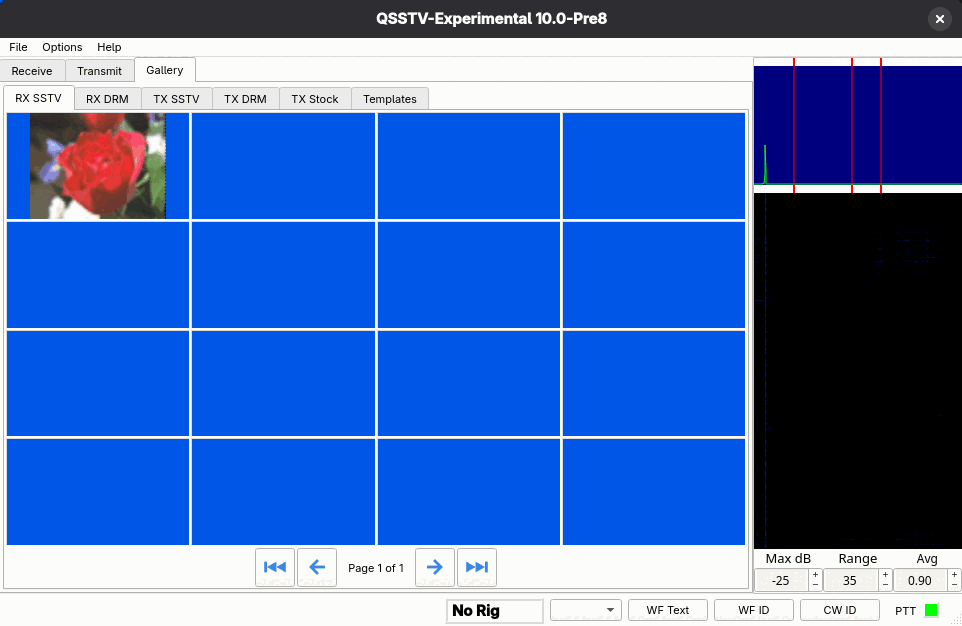
Sub-tabs
| Tab | Shows |
|---|---|
| RX SSTV | Received SSTV pictures. |
| RX DRM | Received DRM pictures. |
| TX SSTV | SSTV pictures you transmitted. |
| TX DRM | DRM pictures you transmitted. |
| TX Stock | Your library of ready-to-send pictures. |
| Templates | Your TX templates. |
The folders behind these tabs are set in Configuration > Directories. The number of rows and columns of thumbnails is set in Configuration > Gui (4 x 4 by default). Use the arrow buttons under the grid to page through (first, previous, next and last page); the label shows Page n of m.
Right-click menu
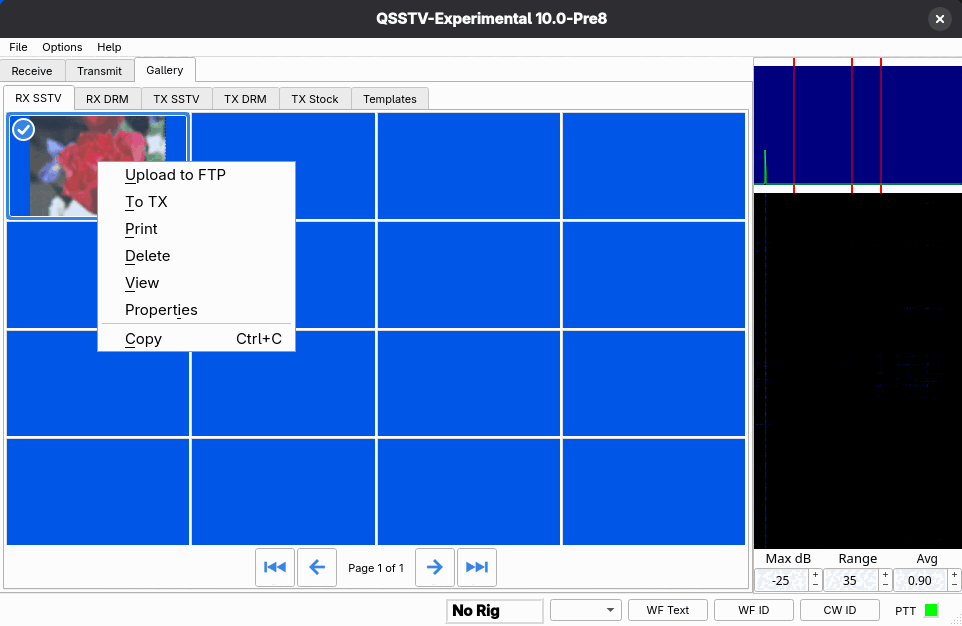
- Upload to FTP
- Uploads the picture to the FTP server set up under FTP.
- To TX
- Loads the picture into the Transmit tab.
- Prints the picture.
- Delete
- Deletes the picture. By default you are asked to confirm; this can be changed in the Gui configuration page.
- View
- Opens the picture in a viewer window. Use the mouse wheel to zoom smoothly and drag to pan.
- Properties
- Shows file information about the picture.
- Copy (Ctrl+C)
- Copies the picture to the clipboard. You can paste it, or a picture copied from anywhere else, into the Transmit tab or into TX Stock.
The menu differs a little between tabs; for example the TX Stock and Templates tabs offer New, Load and Edit in place of some of the entries above.
Selecting several pictures
Click a thumbnail to select it; selected thumbnails are tinted and show a check mark. Ctrl+click adds or removes a single thumbnail and Shift+click selects a range. With several selected, the right-click menu deletes them all or sends them all to the Transmit tab, and the Del key deletes the selected pictures. Thumbnails are listed newest first.