Transmitting
Sending an SSTV picture
- Set your operator data, sound output and PTT in Configuration.
- Open the Transmit tab and choose the SSTV settings tab.
- Load a picture with the Load image toolbar button (a folder icon), or send one from the gallery with To TX. To try the program without a picture file, use File > TX Test Pattern.
- Choose the Mode. The estimated transmission time is shown below the picture.
- Check your audio level, then press the green Start transmit button. TX Progress shows how far along it is. The red square stops the transmission and returns to receive.
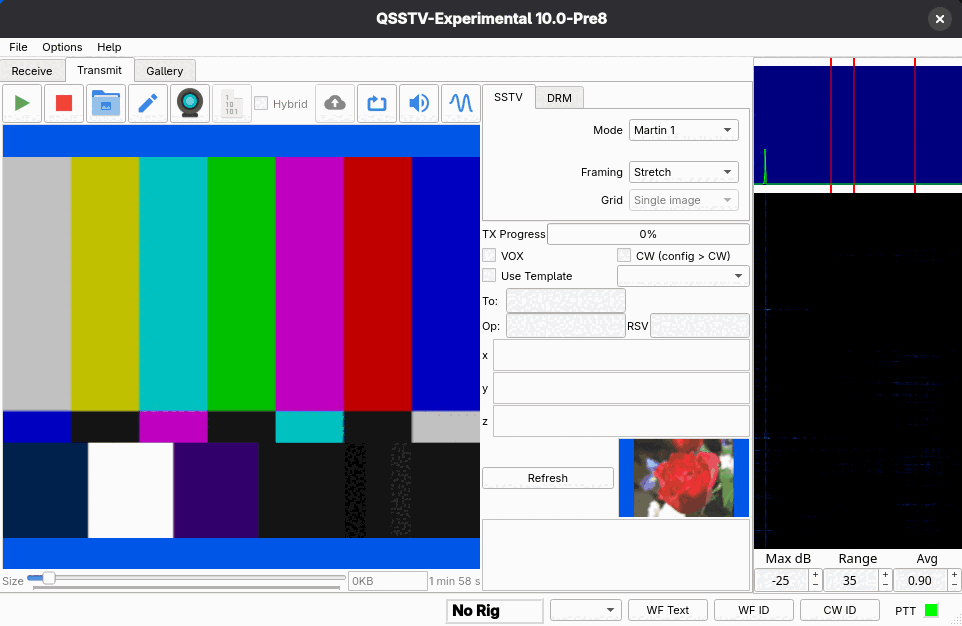
Set your transmit audio level so the radio is not overdriven. Use a tone (see below) or the test pattern into a dummy load to adjust it.
Toolbar
| Button | What it does |
|---|---|
| Green triangle | Start transmit. |
| Red square | Stop transmit. |
| Folder | Load image. |
| Pencil | Edit image. Opens the current picture in the editor (not available while transmitting). |
| Camera | Camera snapshot, from a connected webcam. |
| Binary icon (1 0 101) | Send binary file. A DRM function: see Digital SSTV (DRM). |
| Hybrid checkbox | Hybrid mode for DRM transmissions (see Hybrid). It is only available on the DRM tab. |
| Cloud arrow | Upload Now: upload a hybrid picture to the server without transmitting. |
| Loop arrows | Send repeater tone: a 1750 Hz tone for 3 seconds. |
| Speaker | Send tone: opens a dialog for a test tone. |
| Sine wave | Send sweep tones: opens a dialog for a frequency sweep. |
SSTV settings
- Mode
- The transmit mode. All modes are in SSTV modes.
- Framing
- How the picture is fitted to the mode's picture size: Stretch, Crop, Fit or Free. With Free you zoom and pan the picture exactly into the frame (mouse wheel to zoom, drag to pan, and a right-click menu to reset zoom and pan).
- Grid
- Single image, Grid 1x2, Grid 2x1 or Grid 2x2: stitch several pictures together. This is only offered on modes whose picture is larger than 512x400 pixels (the size of PD160), such as PD120 (640x496).
Framing and grids
With a grid selected, the picture area is divided into cells. Right-click a cell to load a picture into it, edit it, copy it or paste into it. The Framing setting then applies to the selected cell. In the gallery, To TX fills the first empty cell and offers an Auto / Grid N submenu to pick a cell. Press Delete to remove the picture of the selected cell. The same Framing and Grid controls exist on the DRM tab.
Options below the settings
- VOX
- Sends a leading tone before the picture, so a VOX-keyed transmitter is already keyed when the picture starts.
- CW (config > CW)
- Sends CW at the end of the transmission. The text is set in Configuration > CW.
- Use Template and the template list
- Lays the picture into a template (created with the editor), for example with a callsign banner. The To, Op and RSV boxes and the three large text boxes (x, y, z) are values for the template; Refresh applies them to the picture.
- Size slider and size box
- Under the picture: the size and the estimated transmit time. With DRM the slider sets the compressed picture size, and the preview updates while you drag it.
When Save TX images in TX SSTV or TX DRM directory is ticked in Configuration > Directories, every picture you transmit is also stored in that directory and appears in the gallery's TX tabs.
Tones and sweeps
These are for adjusting audio levels and testing.
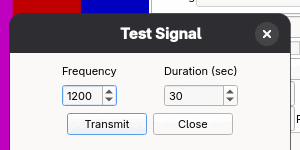
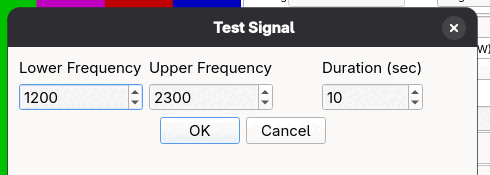
The tone and sweep dialogs remember their last settings. The repeater-tone button needs no dialog.